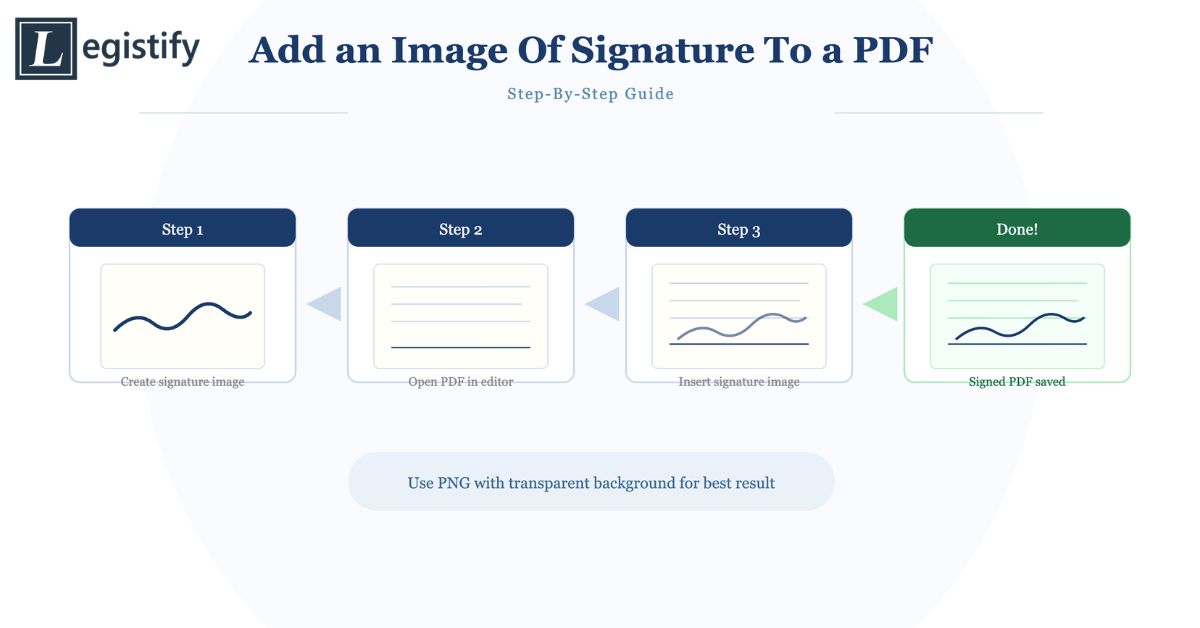
Adding an image of your signature to a PDF allows you to sign documents digitally without using a formal e-signature platform. The process involves creating a clean image of your handwritten signature and inserting it into the appropriate location in the PDF file. This is one of the simplest ways to sign a document electronically and works across a wide range of PDF editing tools.
This guide covers how to create a signature image, and how to add it to a PDF using several different methods.
Step 1: Create a Clean Signature Image
Before you can add a signature image to a PDF, you need a good-quality image of your signature. There are several ways to create one.
Sign on paper and photograph or scan it. Sign your name on a plain white piece of paper using a dark pen. Photograph the signature in good lighting or scan it. Crop the image tightly around the signature and save it as a PNG file. Using PNG format with a transparent background (which you can create in most image editing applications by removing the white background) allows the signature to sit naturally on top of document text without a white box around it.
Sign on a touchscreen. On a smartphone or tablet, you can draw your signature using your finger or a stylus in a notes application or a dedicated signature creator app, then save it as an image. This tends to produce a cleaner result than photographing a paper signature because there is no lighting or camera quality variable.
Use an online signature creator. Several websites allow you to draw or type a stylised signature and download it as a PNG file. These are useful if you need a quick signature image and do not have scanning equipment available.
For the clearest result, a PNG file with a transparent background is ideal. It allows the signature image to sit on top of the document without obscuring the surrounding text or layout.
Method 1: Using Adobe Acrobat
Adobe Acrobat is the most widely used PDF editor and provides straightforward tools for adding images, including signature images.
Step 1: Open the PDF in Adobe Acrobat.
Step 2: Go to Tools and select Edit PDF. This activates the editing toolbar.
Step 3: In the toolbar, select Add Image. A file browser will open. Navigate to your signature image file and select it.
Step 4: Click on the document where you want the signature to appear. The image will be inserted at that location.
Step 5: Resize and reposition the image as needed. Adobe Acrobat allows you to drag the image to the correct position and resize it by dragging the corner handles. Hold Shift while resizing to maintain the aspect ratio and prevent the signature from becoming distorted.
Step 6: Save the PDF. The signature image is now embedded in the document.
Method 2: Using Free Online PDF Editors
If you do not have Adobe Acrobat, several free online tools allow you to add images to PDFs.
Smallpdf: Go to smallpdf.com, upload your PDF, and use the Edit PDF tool. Select Add Image and upload your signature file. Position and resize as needed, then download the edited PDF.
ILovePDF: Go to ilovepdf.com, upload your PDF, and use the Edit PDF function. The process is similar to Smallpdf.
PDF24: Go to pdf24.org and use the PDF editor tool. Upload the document, add the image, position it, and download.
These free tools are adequate for one-off use. They typically impose file size limits and may not produce the highest-quality output for documents that require very precise positioning. Most also add a small watermark to free-tier outputs.
Method 3: Using Word, Then Converting to PDF
If the document you need to sign was originally created in Microsoft Word or Google Docs, you can add your signature image in the word processor before converting to PDF.
In Microsoft Word:
Step 1: Open the document in Word.
Step 2: Go to Insert > Pictures and select your signature image file.
Step 3: Click on the image and use the Layout Options (the icon that appears to the top right of the image) to set the text wrapping to In Front of Text. This allows you to position the signature freely over the document.
Step 4: Drag the signature image to the correct position and resize as needed.
Step 5: Save the document as PDF (File > Save As > PDF).
In Google Docs:
Step 1: Open the document in Google Docs.
Step 2: Go to Insert > Image > Upload from computer and select your signature file.
Step 3: Click on the image and select In front of text from the wrapping options. Position and resize.
Step 4: Download as PDF (File > Download > PDF Document).
Method 4: Using a Mobile App
Signing PDFs from a mobile device is increasingly common. Several apps make this straightforward.
Adobe Acrobat Mobile: Open the PDF, tap the pen icon to fill and sign, tap the signature option, and either draw your signature or upload an image. Once created, tap to place it in the document.
Smallpdf App: Upload the PDF, use the signature tool to insert your signature image, position it, and download.
DocuSign: DocuSign’s mobile app allows you to import a signature image or draw one directly, then place it on any document.
Most mobile e-signature apps allow you to save your signature once created so you do not need to recreate it for every document.
Method 5: Using the Preview Application on Mac
Mac users can add a signature image to a PDF using Preview, which is included with macOS at no additional cost.
Step 1: Open the PDF in Preview.
Step 2: Click the pen icon in the toolbar (Markup Toolbar) to show the annotation tools.
Step 3: Click the Signature tool (looks like a cursive signature). You can create a signature by signing on the trackpad, using the camera to photograph a paper signature, or selecting a saved signature.
Step 4: Click on the document to place the signature. Resize and reposition as needed.
Step 5: Save the PDF.
Preview’s signature tool is one of the most convenient free methods for Mac users because it is built into the operating system with no additional software required.
Important Considerations for Signed PDFs
Editing after signing
Once a signature image is placed in a PDF and the document is saved, you should avoid editing the document further. Any edits made after signing may be interpreted as altering the signed document, which undermines the integrity of the signature. If the document needs to be amended after signing, the amendment should be made as a new signed document rather than by editing the original.
Difference between a signature image and an electronic signature
Adding a signature image to a PDF is not the same as applying a legally certified electronic signature. An image-based signature does not carry cryptographic authentication: it does not verify the identity of the person who placed the image, and it does not detect whether the document has been altered after the image was inserted.
A certified electronic signature, such as one applied through Aadhaar eSign or a Digital Signature Certificate (DSC) in India, uses cryptographic methods to verify the signatory’s identity and to seal the document against alteration. For commercial agreements, regulatory filings, and documents where the enforceability of the signature may need to be proved, a certified electronic signature is significantly more reliable than a signature image.
Legistify eSign (legistify.com/sign-doc) is a free tool that supports Aadhaar eSign, DSC Token, and OTP-based Digital signatures on any PDF. It requires no sign-up, supports up to two signatories, and produces a tamper-evident audit trail that is court-admissible under the IT Act, 2000 and BSA 2023 — making it a practical step up from a signature image for any document that needs to hold up legally.
For informal documents, internal approvals, or situations where both parties trust the process, a signature image is convenient and generally adequate. For high-value contracts and regulated documents, a certified electronic signature is preferable.
Legal validity in India
A signature image in a PDF is a form of electronic signature under the Information Technology Act, 2000, in that it is a representation of the signatory’s identity applied to an electronic document. However, it is a basic electronic signature without the additional authentication layers that Aadhaar eSign or DSC signatures provide. Courts in India assessing the authenticity of a signature image would consider whether the image was genuinely applied by the claimed signatory and whether the document has been altered since signing, both of which are more difficult to prove for a simple image than for a cryptographically certified signature.
Conclusion
Adding a signature image to a PDF is quick, free (or low-cost), and works across a wide range of devices and operating systems. For everyday documents, it is a practical and efficient signing method. For legally significant commercial agreements, using a certified electronic signature through an e-signature platform provides a more robust and enforceable result.