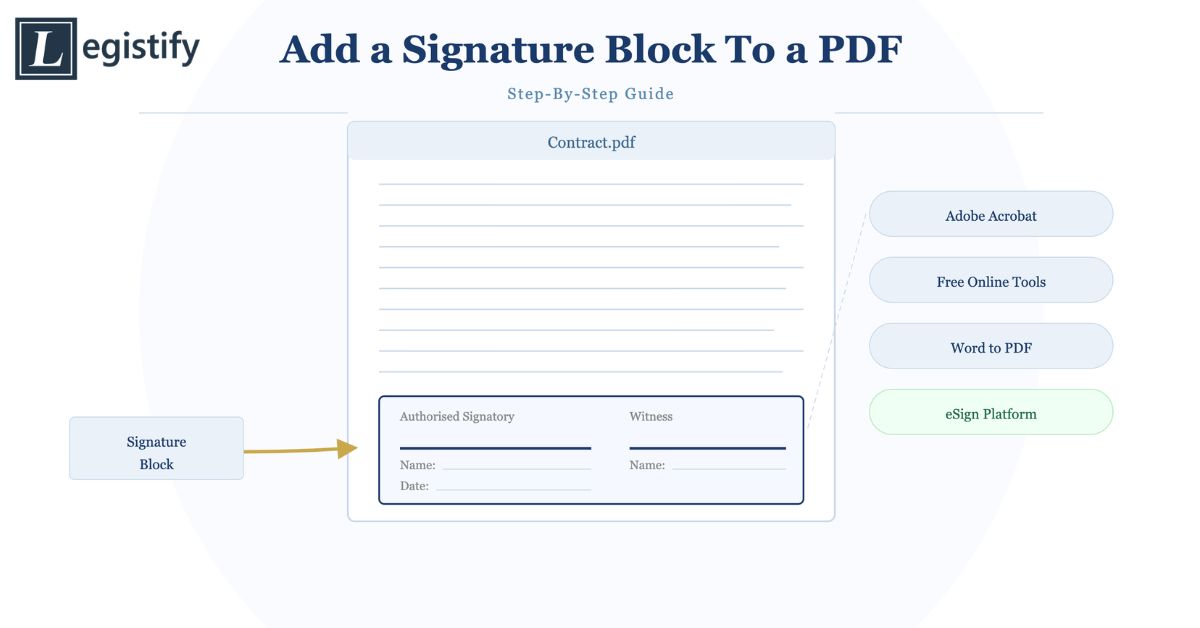
A signature block is a designated area in a PDF document where one or more parties are expected to sign. It typically includes a signature line, space for the signatory’s name and title, a date field, and sometimes additional information such as the company name or a witness signature. Adding a signature block to a PDF before it is sent for execution ensures that the signatory knows exactly where to sign and that the executed document records all necessary information alongside the signature.
This guide covers the main methods for adding a signature block to a PDF, from using Adobe Acrobat to free online tools, mobile apps, and enterprise e-signature platforms.
Why Add a Signature Block Before Sending
Sending a PDF without a defined signature block leaves the signatory to determine where to sign, which increases the risk of signatures being placed in incorrect or legally inadequate positions. For contracts that require specific execution formalities, such as agreements that must be signed by an authorised officer with their designation, a properly configured signature block ensures that the completed document contains all the information needed to establish the signature’s validity.
For documents that will be signed electronically, a pre-configured signature field serves an additional purpose: it tells the e-signature platform exactly where to place the electronic signature, ensuring that the signed document aligns with the original layout and that the signature is in the legally correct position.
Method 1: Using Adobe Acrobat
Adobe Acrobat (Pro or Standard) is the most widely used tool for working with PDF files and includes tools for adding signature blocks.
Step 1: Open the PDF in Adobe Acrobat.
Step 2: Go to the Tools menu and select Prepare Form. Acrobat will analyse the document and may automatically detect likely signature fields. You can accept or reject these suggestions.
Step 3: In the Prepare Form toolbar, select the Signature Field tool (the pen icon). Click and drag on the document where you want the signature block to appear. A dialog box will appear asking you to name the field.
Step 4: Double-click the signature field to open its properties. You can configure the field name, set it as required, add a tooltip that tells the signatory what the field is for, and set the appearance (with or without a border, background colour, and so on).
Step 5: If you need to add text fields for the signatory’s name, title, date, or company alongside the signature, use the Text Field tool from the same toolbar to add these fields in the appropriate positions.
Step 6: Save the PDF. The document now contains a signature block that will be visible to anyone opening it, and that any e-signature tool or Adobe’s own sign function will recognise as a designated signature location.
For multiple signatories: Add a separate signature field for each signatory and name them clearly (Signatory A, Signatory B, and so on) so that when the document is sent for execution, each person’s field is identifiable.
Method 2: Using Free Online PDF Editors
Several free and freemium online PDF editors allow you to add signature blocks without paying for Adobe Acrobat. Common options include Smallpdf, ILovePDF, PDF24, and Sejda. The process is broadly similar across these tools.
Step 1: Go to the online PDF editor’s website and upload your PDF.
Step 2: Select the form editing or signature field tool. Most online editors provide a menu of field types including text fields, checkboxes, date fields, and signature fields.
Step 3: Click on the document where you want the signature block and drag to define its size. Add any supporting text fields for name, title, and date.
Step 4: Download the edited PDF with the signature block included.
Free online tools have limitations compared to Adobe Acrobat: they may not support as many field types, they may limit file size, and they may not produce PDF/A compliant output required for archiving. For one-off or low-volume use, they are adequate. For regular or enterprise use, a proper PDF editor or an e-signature platform is more appropriate.
Method 3: Using a Word Processor Before Converting to PDF
If the document originates as a Word file (DOCX), the signature block is often easiest to add in Word before the file is converted to PDF.
In Microsoft Word:
Step 1: Position your cursor where the signature block should appear.
Step 2: Go to Insert > Signature Line (in the Text group). A dialog box will appear asking for the signatory’s name, title, email address (optional), and any instructions for the signer.
Step 3: Complete the fields and click OK. A signature line with the specified details will appear in the document.
Step 4: Add a date line, company name, and any other fields you need alongside the signature line using text boxes or a simple table.
Step 5: Save as PDF. File > Save As > PDF. The signature block will be included in the PDF.
This method produces a clean visual signature block but the signature line created by Word’s Signature Line function is not the same as an interactive form field in Adobe Acrobat. If you need the PDF to have clickable, interactive signature fields that an e-signature platform can recognise, convert the Word document to PDF and then use Acrobat or an e-signature tool to add the interactive fields.
Method 4: Adding a Signature Block on Mobile
If you need to prepare a document for signing while away from a desktop, the Adobe Acrobat mobile app supports adding signature fields directly from a phone or tablet.
Step 1: Open the PDF in the Acrobat mobile app and tap the Tools icon.
Step 2: Select Prepare Form, then choose the signature field tool from the toolbar that appears.
Step 3: Tap the location on the page where the signature block should appear, and adjust its size and position with your finger.
Step 4: Add any supporting text fields for name, title, or date the same way, then save the document.
Most enterprise e-signature platforms, including Legistify eSign, also work directly in a mobile browser, so signature fields can be placed and documents sent for signature from a phone without installing a separate app.
Enterprise e-signature platforms such as those integrated with CLM systems allow you to add signature blocks and other form fields directly within the platform’s interface when preparing a document for execution. This is the most streamlined approach for organisations that send large volumes of documents for signature, because the signature block creation and the signature request are part of the same workflow.
Step 1: Upload the PDF to the e-signature platform.
Step 2: Use the platform’s drag-and-drop interface to add signature fields, date fields, name fields, and any other required elements. Assign each field to a specific signatory if the document has multiple parties.
Step 3: Send the document for signature. The platform will deliver the document to each signatory with their designated fields highlighted.
Step 4: Once all signatories have executed, the platform produces a completed PDF with the signatures, timestamps, and audit trail incorporated.
This approach is particularly efficient because the platform handles the signature block configuration, the distribution to signatories, the tracking of completion status, the follow-up reminders, and the final document storage all within a single workflow.
For a free starting point, Legistify eSign (legistify.com/sign-doc) allows you to upload a PDF, place signature fields for up to two signatories, and send for execution using Digital (OTP), Aadhaar eSign, or DSC Token signing — with no account required and a court-admissible audit trail included.
Here is how it works:
Step 1 — Upload. Go to legistify.com/sign-doc and upload your PDF (up to 10MB).
Step 2 — Add signatories. Enter names and emails for up to two signatories. Select the signature type: Digital (OTP), Aadhaar eSign, or DSC Token.
Step 3 — Place signature fields. Drag the signature field to the exact position on the document where each party needs to sign — this is the signature block placement step, done entirely in-browser.
Step 4 — Send and track. Send the request. Signatories receive a secure link. You receive a tracking code to monitor completion in real time. The fully executed document with audit trail is available for download once all parties have signed.
What a Signature Block Should Include
A well-designed signature block for a commercial contract typically includes:
Signature line. A horizontal line below which the signatory places their signature. This is the core element of the block.
Name. A field for the signatory to print their full name, or a pre-populated name if the signatory is known.
Title or designation. The signatory’s role (for example, “Director,” “Chief Executive Officer,” “Authorised Signatory”). For corporate signatories, this establishes signing authority.
Company name. For contracts between companies, the company name should appear in the signature block to confirm the party who is executing.
Date. The date on which the signature is applied. In some agreements, the execution date is critical for determining when obligations begin.
For Indian contracts: Where a common seal is required for execution by a company, the signature block should include a space for the seal alongside the signature. For documents executed under a power of attorney, the signature block should reference the power of attorney and the attorney’s details.
Signature Block Positioning
The signature block should be positioned consistently across all parties’ versions of the document. In a two-party agreement, both signature blocks typically appear on the same page if possible, or on consecutive pages. Execution pages that contain only the signature blocks are sometimes used for longer documents, clearly referencing the agreement to which they belong.
For Indian contracts, ensuring that the signature block clearly identifies the signatory’s role and that any applicable stamp duty provisions have been addressed before execution is important. An incorrectly stamped document may be inadmissible as evidence in Indian courts, regardless of how the signatures are configured.
Conclusion
Adding a signature block to a PDF is a straightforward process using Adobe Acrobat, free online editors, Word-based creation before PDF conversion, a mobile app, or an e-signature platform. The right approach depends on the volume of documents you handle, the level of interactivity required, and whether the document will be signed electronically or in wet ink. For enterprise legal teams handling high volumes of contract execution, an e-signature platform that integrates signature block creation with the signing workflow produces the most efficient and auditable results.